Check your iOS version
On the iPhone or iPad, open Settings > General > About and write down the iOS Version and device model.
Simple guide for first-time users
Start with Base mode, save app data first, choose the apps you want to change, then tap Reset & Apply Fake.
Safest mode. Reset selected apps and apply new country, language, time zone, location, and app IDs.
Install
TrollStore support depends on your iOS version. Check compatibility first, install TrollStore with the matching official method, then use TrollStore to install MKProfile.
Do not update iOS before checking compatibility. TrollStore only supports specific iOS/iPadOS versions, and the install method is different for different devices.
On the iPhone or iPad, open Settings > General > About and write down the iOS Version and device model.
TrollStore supports iOS/iPadOS 14.0 beta 2 through 16.6.1, 16.7 RC, and 17.0. iOS 16.7.x except 16.7 RC and iOS 17.0.1 or newer are not supported.
Open the official iOS Guide, choose the row that matches your iOS version and device type, then follow that method until the TrollStore app appears.
Open TrollStore Settings and install Persistence Helper when offered. This helps TrollStore and installed apps keep opening after icon cache refreshes.
MKProfile TIPA
On the device, open Safari and go to mkprofile.xxxcontrol.online, then tap Download TIPA.
If the share sheet appears, choose TrollStore. If it saves to Files, open TrollStore, tap the plus button, then choose the downloaded MKProfile.tipa file.
Wait until TrollStore finishes. When MKProfile appears on the Home Screen, open it and choose ENG or VIE.
To update MKProfile, download the new TIPA and install it over the old app in TrollStore. Do not delete MKProfile first unless you want to remove its local data.
Quick Start
Use this order if you are new, or if you are helping another user set up their apps.
Base is the safest mode. It resets selected apps and applies the new profile without using stronger changes.
Open Fake Profile and choose the country, language, time zone, location, iOS version, and device model you want the apps to use.
Open Save App Data, select important apps, then tap Backup Now. This gives you a saved copy before reset.
These are the apps that should use the new device information from your Fake Profile.
These apps will start clean when you run Reset & Apply Fake. Most users choose the same apps they selected in Apps to Fake.
Wait until MKProfile finishes. Do not open the selected apps during the process. When it is done, open the apps again.
Screenshots
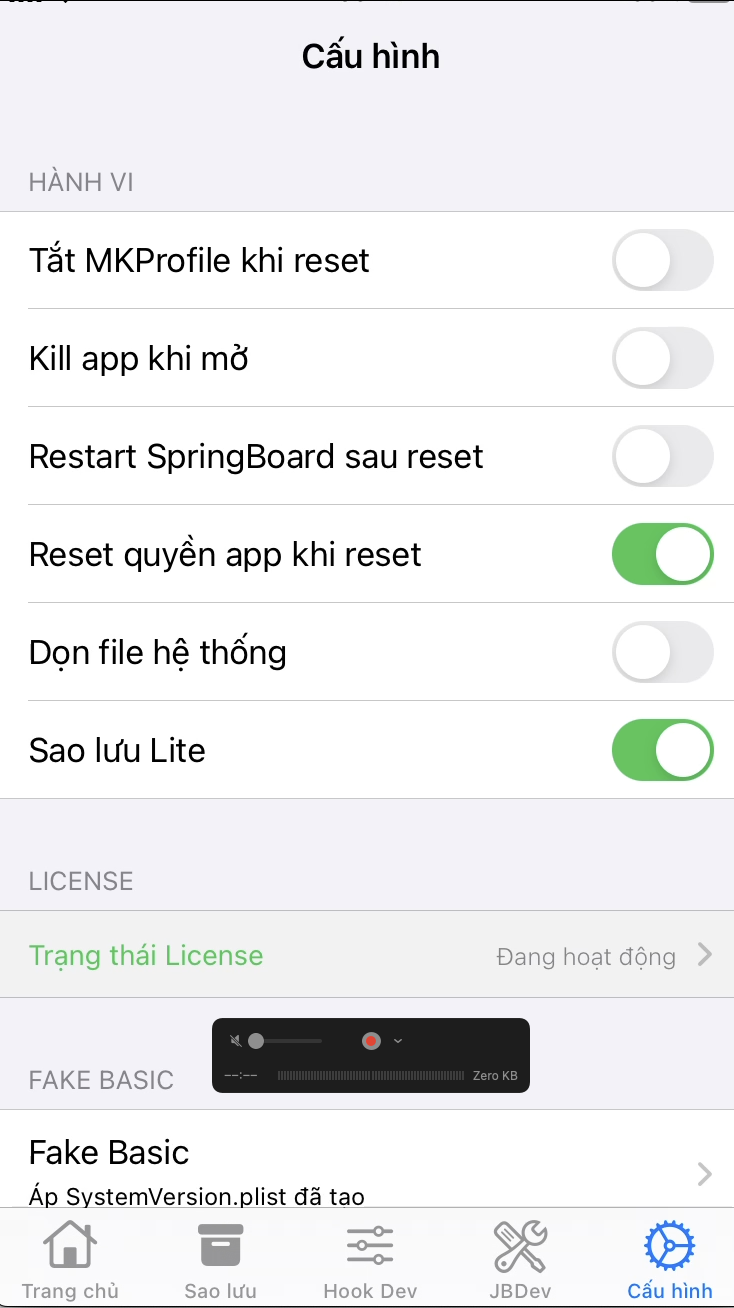
These screenshots show the main places users will visit. Some screenshots may come from an earlier build, so follow the names used in this guide if a label looks different.
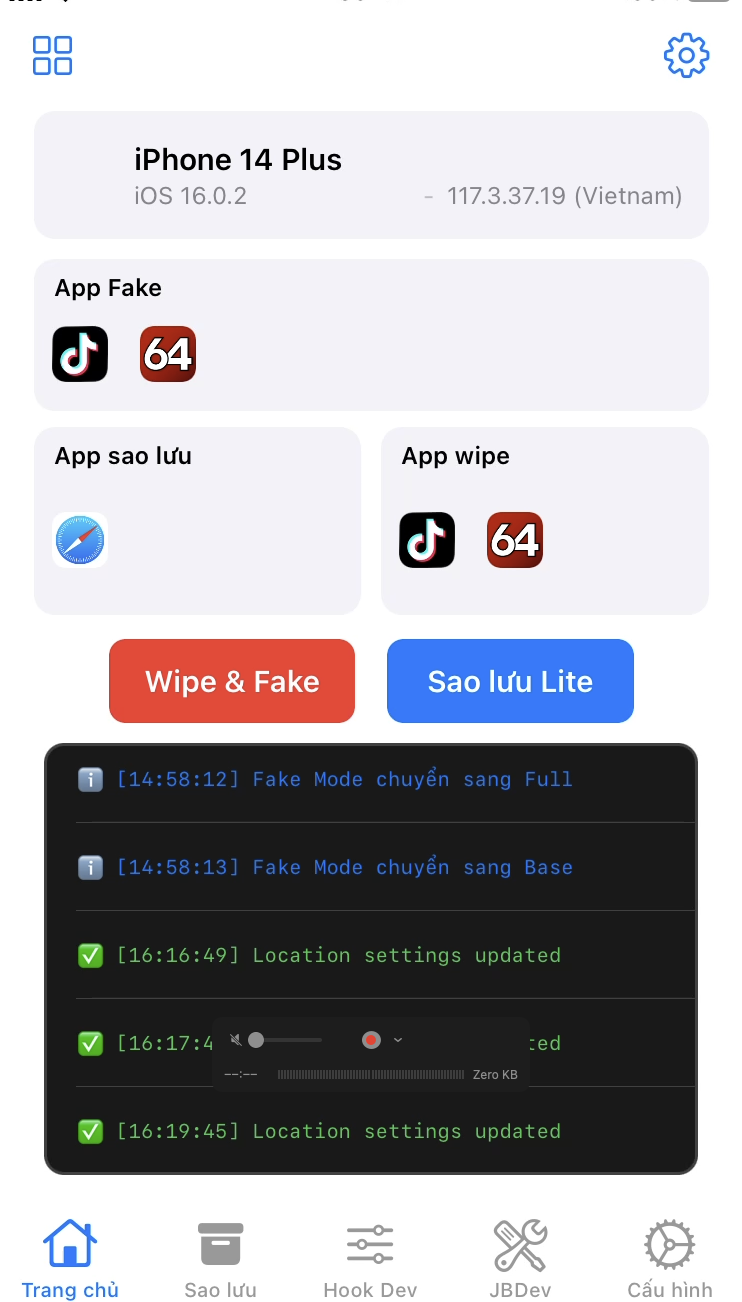 1
2
3
4
5
1
2
3
4
5
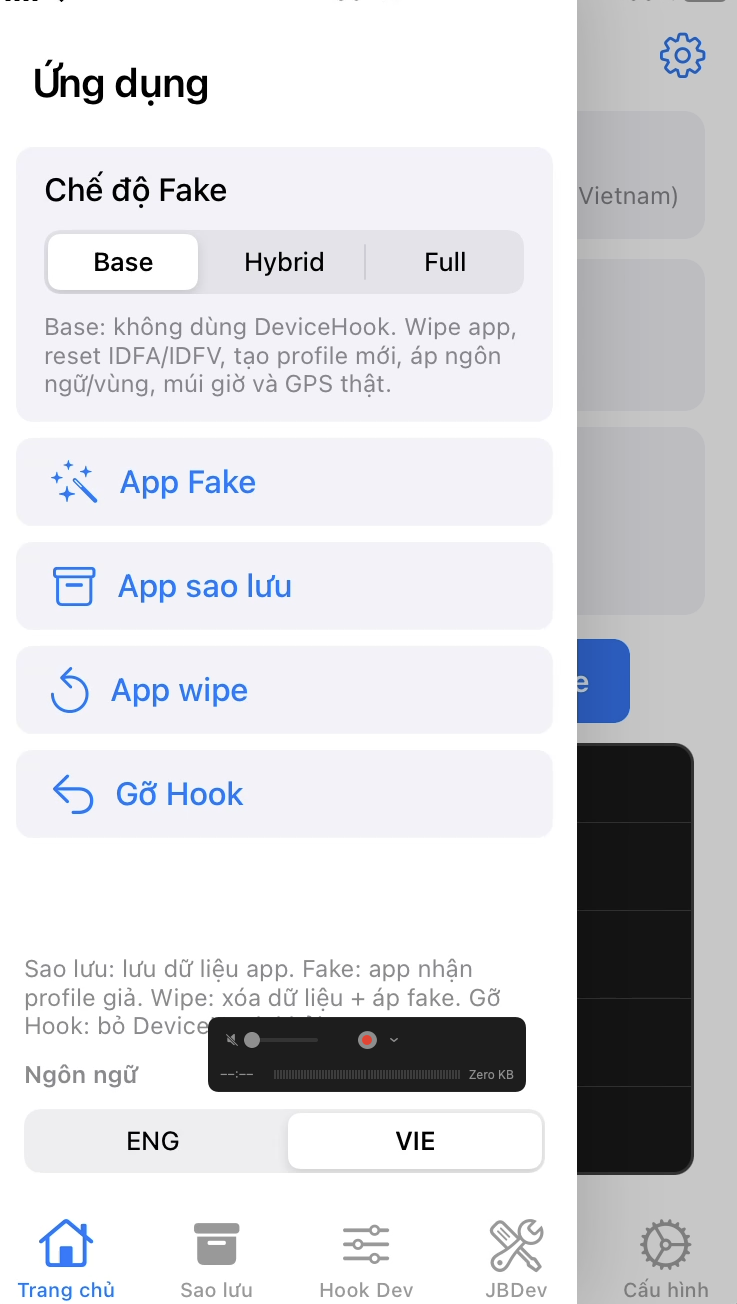 1
2
3
4
5
6
1
2
3
4
5
6
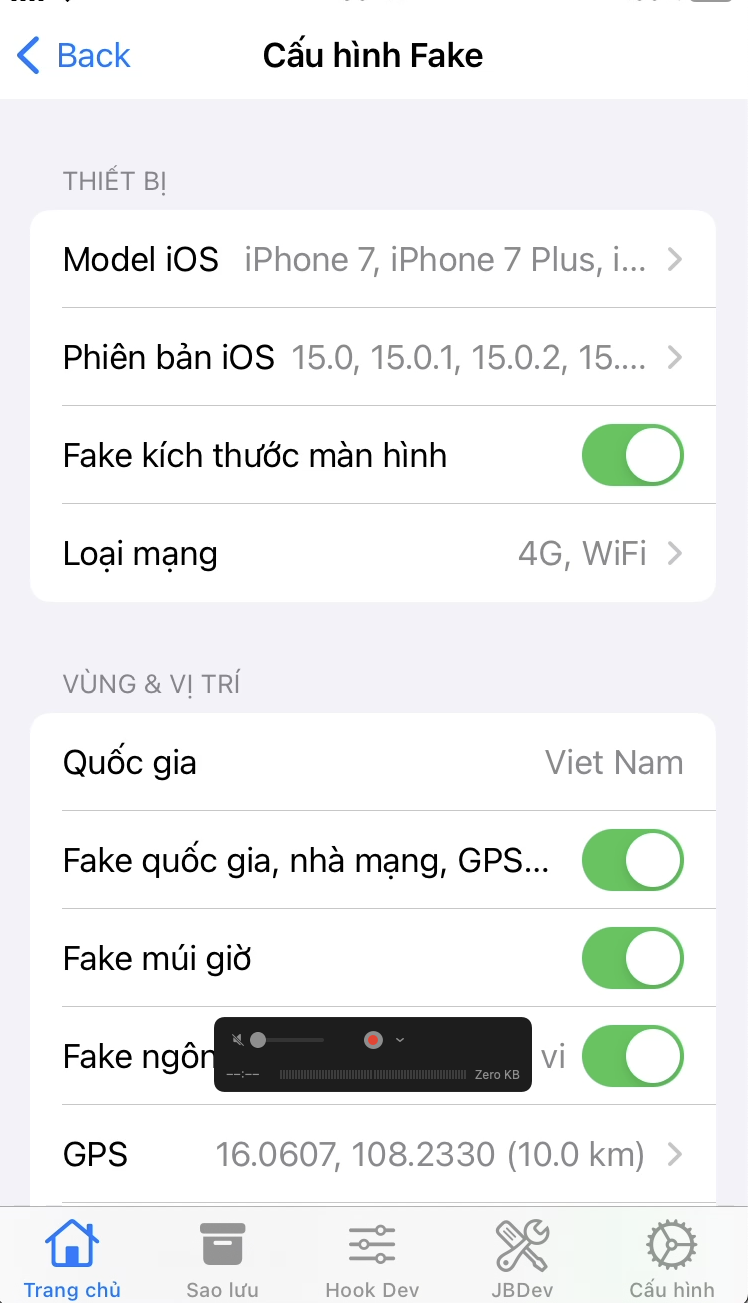 1
2
3
4
5
1
2
3
4
5
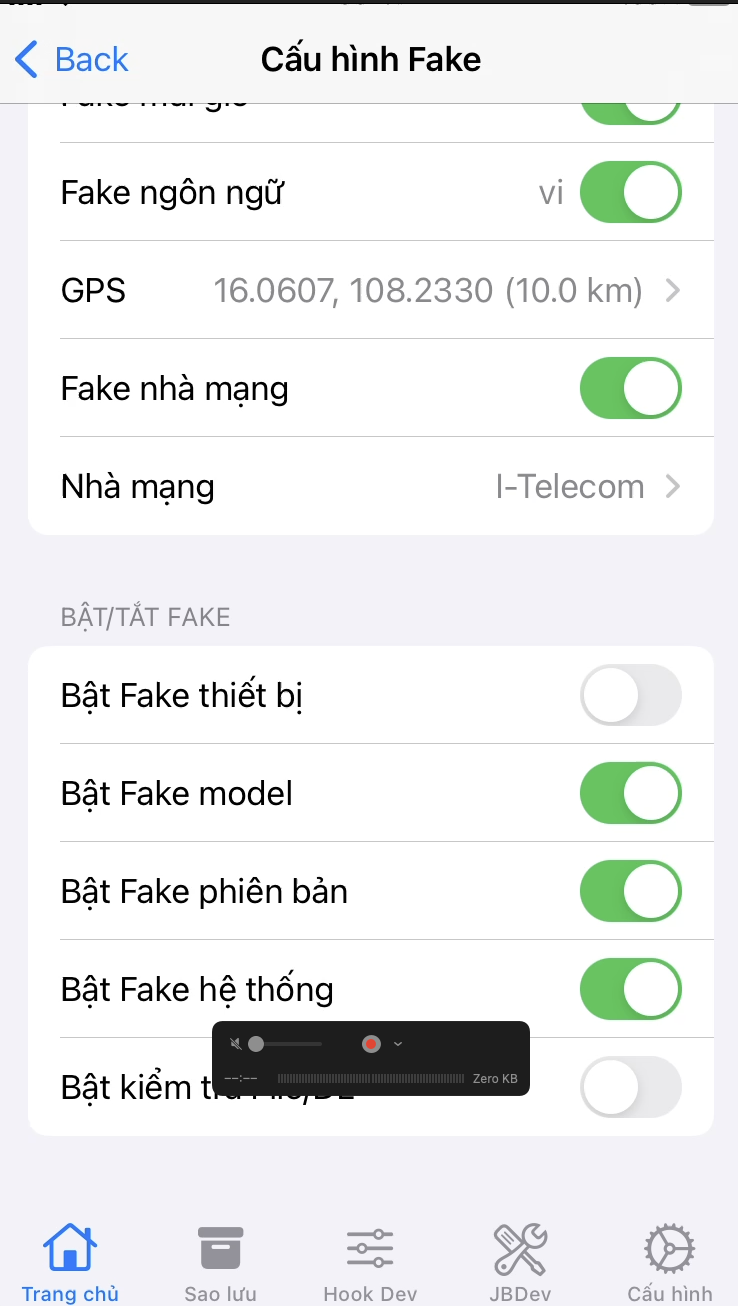 1
2
3
4
5
1
2
3
4
5
 1
2
3
4
1
2
3
4
Best practice
Most users should try Base first. If an app still shows old device information, switch to Full and run Reset & Apply Fake again.
Screen words
Choose apps whose data should be backed up before you reset or change them.
Choose apps that should use the new profile information.
Choose apps that should start clean when Reset & Apply Fake runs.
Runs the full change process: reset selected apps, create a new profile, apply language and region, then prepare selected apps.
Return selected apps to the real device. This is different from restoring a backup.
Use the Backups tab when you want to restore saved app data from a previous backup.
Before you tap reset
Help
Close the target apps and run Reset & Apply Fake again. If the app was already open, it may still show old information until it is fully restarted.
Switch Fake Mode from Base to Full, then run Reset & Apply Fake again for the same app.
Use Stop Fake for that app, switch back to Base, then run Reset & Apply Fake again.
Open the Backups tab and restore the backup you created earlier. Stop Fake only returns the app to the real device; it does not restore saved data.